Quick-Start Guide
This guide reviews common use cases, types of diagrams, and styling. For a description of all the graph and data types, see the other items in the menu.
First Examples
Start by importing ziaplot. In this documentation, it is imported as zp:
import ziaplot as zp
To create a drawing, first define a Diagram or Graph on which to draw, then add the elements representing geometric figures or data. A Diagram is a blank drawing surface, while a Graph is a Diagram that contains axes.
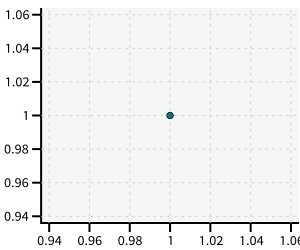
Let’s make a Graph. The Graph is typically created using a with block context manager. Anything created inside the with block is added to the Graph, such as this Point.
with zp.Graph():
    zp.Point((1, 1))
Tip
If the code is run within a Jupyter Notebook, the drawing will be shown automatically in the cell’s output. In Spyder, the drawing is shown in the “Plots” tab.
To save the drawing to a file, use .save() with the name of an image file to write:
with zp.Graph():
    zp.Point((1, 1))
    zp.save('my_point.svg')
Items may also be added using the += operator, with the same results:
p = zp.Graph()
p += zp.Point((1, 1))
p.save('my_point.svg')
Note
Ziaplot generates images using SVG2.0, which modern browsers display well. But some SVG renderers, including recent versions of Inkscape, Spyder, and some OS built-in image viewers, are not fully compatible with the SVG 2.0 specification. Use zp.config.svg2 = False to force SVG 1.x specifications for better compatibility.
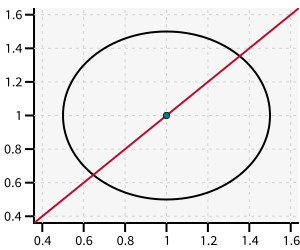
Other elements may be added by creating them inside the with block. A Circle is made given an x, y, and radius. A Line is added from a (x,y) point and slope.
with zp.Graph():
    zp.Point((1, 1))
    zp.Circle((1, 1), .5)
    zp.Line(point=(1, 1), slope=1)
Tip
See Line for other ways of defining a line, such as using a slope and intercept.
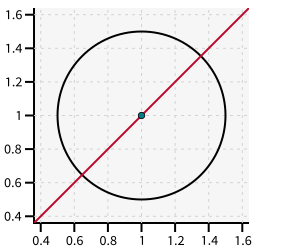
But wait, the circle looks squished! That’s because a Graph doesn’t necessarily scale the x- and y- coordinates the same. To fix the issue, use .equal_aspect() on the Graph:
with zp.Graph().equal_aspect():
    zp.Point((1, 1))
    zp.Circle((1, 1), .5)
    zp.Line(point=(1, 1), slope=1)
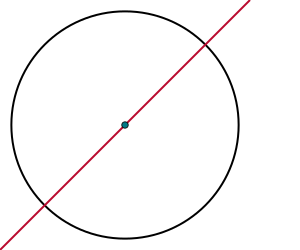
A Diagram assumes equal aspect and doesn’t have this problem, but there are no axes.
with zp.Diagram():
    zp.Point((1, 1))
    zp.Circle((1, 1), .5)
    zp.Line(point=(1, 1), slope=1)
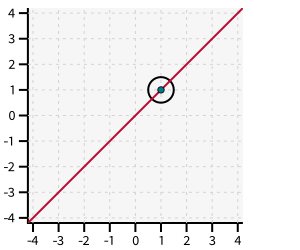
Now notice the domain and range of the axes. Both axis are shown on the interval from 0.4 to 1.6, chosen automatically to enclose the circle with a bit of margin. To expand (or shrink) the range, use methods xrange and yrange.
with zp.Graph().equal_aspect().xrange(-4, 4).yrange(-4, 4):
    zp.Point((1, 1))
    zp.Circle((1, 1), .5)
    zp.Line(point=(1, 1), slope=1)
Tip
See Geometric Figures for other types of geometric figures.
Discrete Data
Next, let’s make a diagram using discrete (x, y) data, which typically comes from measurements and observations rather than fundamental geometry. Discrete (x, y) data may be plotted using PolyLine or Scatter.
A PolyLine connects the (x, y) pairs with line segments. It is not a Line in the geometric sense above. Here some made-up (x, y) values are created and drawn on a GraphQuad using a PolyLine.
x = [0, 1, 2, 3, 4, 5]
y = [0, .8, 2.2, 2.8, 5.4, 4.8]

with zp.GraphQuad():
    zp.PolyLine(x, y)
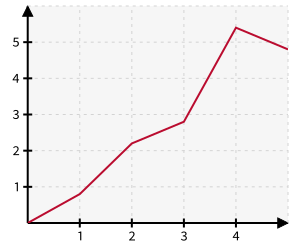
Notice the difference between GraphQuad and Graph. A GraphQuad always draws the axes lines through the origin, with arrows pointing outward. The Graph draws the axes lines on the left and bottom sides of the frame, which may not always pass through the origin.
See also
Diagrams and Graphs lists other types of Ziaplot graphs, including logscale and polar coordinate systems.
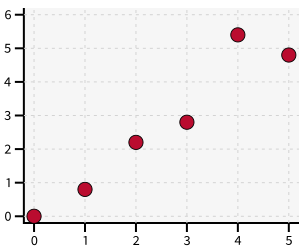
Using Scatter draws the same points as markers without the connecting lines.
with zp.Graph():
    zp.Scatter(x, y)
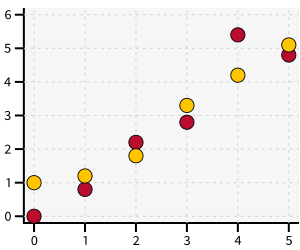
Additional data sets may be added. Each one is assigned a new color.
y2 = [1, 1.2, 1.8, 3.3, 4.2, 5.1]

with zp.Graph():
    zp.Scatter(x, y)
    zp.Scatter(x, y2)
Tip
See Discrete Data for other discrete data types.
Labels
The above graph isn’t very useful without knowing what x- and y- axes represent, and what the two different sets of data mean. Use .axesnames on the Graph to specify names for the x and y axis. Use .title on the Graph to specify an overall title for the Graph. Use .name to give a name to each element, which will appear in a legend.
with zp.Graph().axesnames('Time (s)', 'Distance (cm)').title('Movement'):
    zp.Scatter(x, y).name('Trial 1')
    zp.Scatter(x, y2).name('Trial 2')
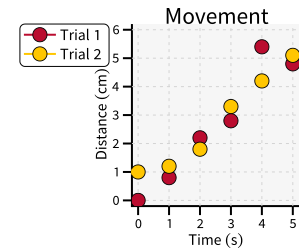
Notice how the axesnames and title methods were chained together. Property-setting methods like these all return self, or the same object it modifies, allowing many properties to be set on one line of code.
Note
Any text enclosed in dollar-signs $..$ is interpreted as LaTeX math and will be typeset as math. This requires ziamath to be installed.
Styles
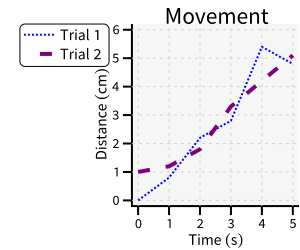
Customizing styles of components uses a similar chained-method interface. Elements have color, stroke, strokewidth methods that can be called to modify their style. Switching the previous plot back to PolyLine:
with zp.Graph().axesnames('Time (s)', 'Distance (cm)').title('Movement'):
    zp.PolyLine(x, y).name('Trial 1').color('blue').stroke('dotted')
    zp.PolyLine(x, y2).name('Trial 2').color('purple').stroke('dashed').strokewidth(4)
Tip
Colors may be a named color, like ‘red’, ‘blue’, or ‘salmon’, or it may be a hex color string, like ‘#fa8072’. Also, colors can be given an opacity value as a percent. Try ‘red 20%’, for example.
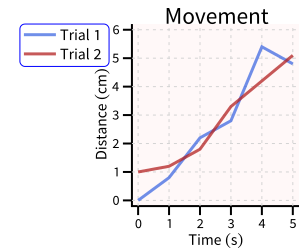
More complex styles are modified using a CSS system. CSS may be added globally to all ziaplot Diagrams, or to specific Diagrams and Elements.
css = '''
Graph {
    color: #FFF8F8;
}
Graph.Legend {
    edge_color: blue;
}
PolyLine {
    stroke_width: 3;
}
#trial1 {
    color: royalblue 75%;
}
#trial2 {
    color: firebrick 75%;
}
'''
with zp.Graph().css(css).axesnames('Time (s)', 'Distance (cm)').title('Movement'):
    zp.PolyLine(x, y).name('Trial 1').cssid('trial1')
    zp.PolyLine(x, y2).name('Trial 2').cssid('trial2')
Tip
See Styling for complete details on using CSS to apply styles.
Themes
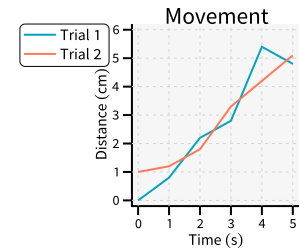
There are also some pre-made themes using CSS. Here, the “taffy” theme is applied to the same Graph.
zp.theme('taffy')

with zp.Graph().axesnames('Time (s)', 'Distance (cm)').title('Movement') as p:
    p1 = zp.PolyLine(x, y).name('Trial 1').cssid('trial1')
    p2 = zp.PolyLine(x, y2).name('Trial 2').cssid('trial2')
Tip
See Themes for all the available built-in themes.